 SmartPicks
How to Choose a USB-C Hub for a Home Office
Disclosure: this page contains affiliate links. If you buy through them, we may earn a commission at no extra cost to you. We only recommend products we would use ourselves.
If you’re setting up a home office and your laptop only has a single USB‑C port, you’ll quickly discover you need more connections than that. Figuring out how to choose a USB‑C hub can feel overwhelming because there are dozens of layouts, data‑rate claims, and power‑delivery options on the market. In this guide I walk you through the exact criteria that matter, the trade‑offs you’ll face, and a step‑by‑step process for matching a hub to your workflow and budget.
Why a USB‑C Hub Matters in a Home‑Office Setup
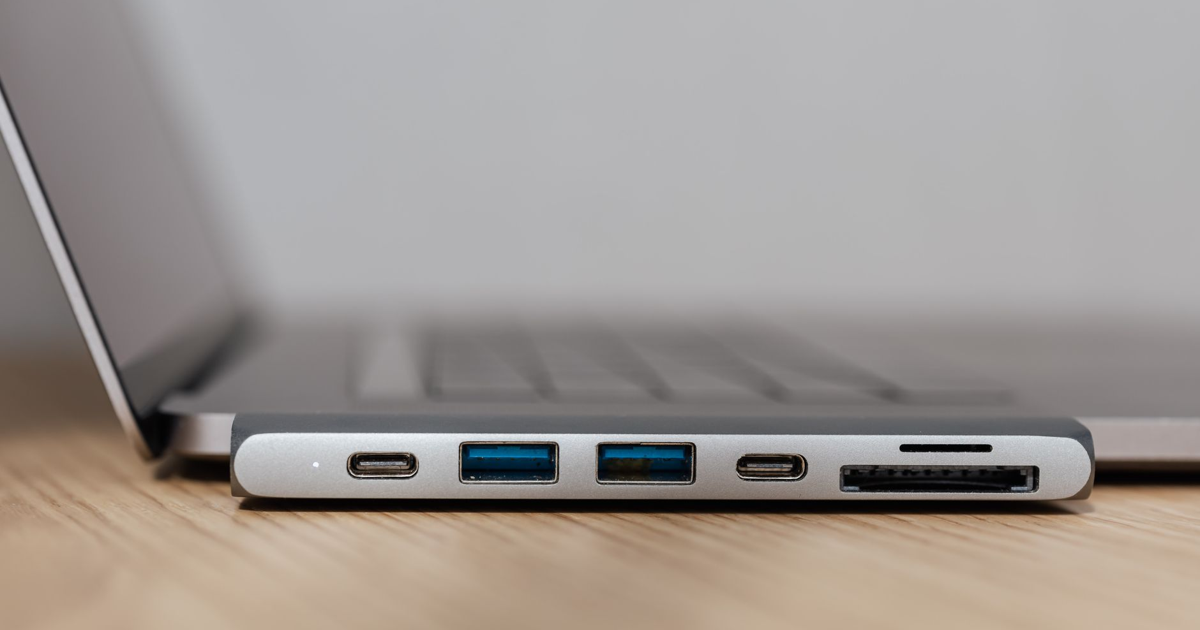
Most modern ultrabooks, MacBooks, and some Windows 2‑in‑1s rely on USB‑C for everything: charging, video output, external storage, and peripheral connections. A hub essentially turns that single port into a mini‑dock, letting you:
* Plug in a second monitor or a TV via HDMI or DisplayPort. * Connect a wired Ethernet cable for a more stable internet connection. * Attach a keyboard, mouse, external hard drives, or a card reader. * Keep your laptop powered while you work, thanks to power‑pass‑through (PD).
If you skip the hub, you’ll end up swapping cables constantly, risking wear on the laptop’s port, and losing precious desk real‑estate. Choosing the right hub, however, is about more than just “more ports.” It’s about aligning the hub’s capabilities with the way you actually work.
The Core Criteria to Evaluate
Below is the checklist I use every time I need a new hub. Treat it as a pre‑shopping worksheet; tick the boxes that apply to your situation.
| Criterion | What to Look For | Why It Matters |
|---|---|---|
| Port Mix | HDMI/DisplayPort, USB‑A (2.0 vs 3.0/3.1), Ethernet, SD/Micro‑SD, Audio jack, VGA (rare) | Determines which peripherals you can keep plugged in simultaneously. |
| Video Support | 4K @ 30 Hz, 4K @ 60 Hz, 1080p @ 60 Hz, Dual‑monitor capability | Impacts how crisp your external display looks and whether you can run two screens. |
| Power Delivery (PD) | Input rating (e.g., 60 W, 87 W, 100 W) | Ensures your laptop stays charged while the hub powers other devices. |
| Data Transfer Speed | USB‑A 5 Gbps (USB 3.0) vs 10 Gbps (USB 3.1 Gen 2) vs 20 Gbps (USB 4) | Affects how fast large files move to external SSDs or NAS boxes. |
| Build Quality & Design | Aluminum vs plastic, detachable vs integrated cables, cable length | Influences durability, heat dissipation, and desk clutter. |
| Compatibility | macOS, Windows, Linux, ChromeOS support; Thunderbolt 3/4 vs plain USB‑C | Guarantees the hub works with your specific laptop model. |
| Warranty & Support | 1‑year vs 2‑year, on‑site service, firmware updates | Gives peace of mind if a port stops working or a driver issue arises. |
1. Port Mix – The “What Do I Plug In?” Question
When I first moved to a home office, I thought “more ports = better,” and I bought a hub with every possible connector. The result? A bulky brick that never fit neatly on my desk, and a few ports I never used (VGA, for example).
Start by listing the peripherals you must have on hand at all times:
* External monitor – most people need at least one. Check whether your monitor uses HDMI or DisplayPort. * Wired internet – a Gigabit Ethernet port is a lifesaver if your Wi‑Fi is spotty. * USB‑A devices – keyboards, mice, printers, and older flash drives still rely on USB‑A. * SD cards – photographers and video editors often need a card reader.
Anything beyond those is optional. If you rarely use an SD card, you can skip that slot and maybe gain a higher‑speed USB‑A port instead.
2. Video Support – Matching Your Display Needs
Most home‑office monitors are 1080p or 1440p, but 4K is becoming common, especially for designers and video editors. The hub’s video spec tells you two things:
* Resolution – Does it support the native resolution of your monitor? * Refresh rate – 60 Hz is the sweet spot for smooth scrolling and video playback.
If you plan to run dual monitors, you need a hub that either offers two video outputs or supports “dual‑display mode” via a single DisplayPort Alt‑Mode connection (some hubs can daisy‑chain monitors using DisplayPort MST). Keep in mind that the total bandwidth is shared, so a hub that advertises “4K @ 60 Hz or dual 1080p @ 60 Hz” is typical.
3. Power Delivery – Staying Charged While You Work
A common mistake is buying a hub with a low‑power PD input (e.g., 45 W) while your laptop’s charger is 65 W or higher. The hub will pass through power, but your laptop will still drain slowly under load.
When I upgraded to a 15‑inch laptop that draws 85 W, I switched to a hub that accepted 100 W PD. The hub’s own power brick (or the laptop’s charger) supplies enough juice to keep the laptop topped off and power the hub’s internal circuitry.
If you already have a high‑wattage charger, look for a hub that can accept that wattage, not just output it.
4. Data Transfer Speed – How Fast Do You Need to Move Files?
USB‑C can carry a wide range of speeds:
| USB Version | Max Theoretical Speed | Typical Use Cases |
|---|---|---|
| USB 3.0 (Gen 1) | 5 Gbps | Keyboard, mouse, flash drives |
| USB 3.1 Gen 2 | 10 Gbps | External SSDs, fast card readers |
| USB 3.2 Gen 2×2 | 20 Gbps | High‑performance NVMe enclosures |
| USB 4 / Thunderbolt 3/4 | 40 Gbps | Dual‑4K displays, external GPUs |
If you regularly copy multi‑gigabyte video files to an external drive, aim for USB 3.1 Gen 2 or better. For everyday office tasks—email, cloud docs, occasional file transfers—USB 3.0 is perfectly adequate.
5. Build Quality & Design – Desk Real Estate and Longevity
I’ve owned two cheap plastic hubs that cracked after a few months of daily plugging and unplugging. Investing in a hub with an aluminum chassis not only feels sturdier but also helps dissipate heat, which can otherwise throttle the hub’s internal controller.
Consider the cable configuration:
* Integrated cable – The hub’s USB‑C connector is permanently attached. Less clutter, but you can’t replace the cable if it frays. * Detachable cable – You can swap for a longer or higher‑quality cable, but the connection point adds a potential failure spot.
A short cable (6–8 in) keeps the hub close to the laptop, reducing strain on the port. A longer cable (12–18 in) offers flexibility if your desk layout forces the hub away from the laptop.
6. Compatibility – macOS, Windows, Linux, ChromeOS
Most USB‑C hubs work across operating systems, but a few quirks exist:
* MacBooks often require a hub that supports “DisplayPort Alt‑Mode” for external monitors. * Windows laptops may need a hub that explicitly lists “Thunderbolt 3/4” if you want dual‑4K or external GPU support. * Linux users should verify that the hub’s Ethernet controller uses a driver that’s in the mainline kernel (most do, but some older chipsets are problematic).
If you’re uncertain, check the hub’s spec sheet for a compatibility matrix. When in doubt, choose a hub that advertises “Universal Compatibility” and read user reviews for your OS.
7. Warranty & Support – Future‑Proofing Your Investment
A hub is a small piece of hardware, but it sits in a high‑use spot. I always look for at least a one‑year warranty and a clear return policy. Some manufacturers also provide firmware updates that fix early‑stage bugs (especially for Ethernet or video drivers).
Trade‑Offs You’ll Encounter
No hub can be perfect in every dimension. Here’s how I weigh the common compromises.
| Trade‑off | Example | When It’s Acceptable |
|---|---|---|
| More ports vs. Smaller footprint | A 12‑port hub is bulky; a 5‑port hub is sleek. | If desk space is tight, prioritize the ports you truly need. |
| Higher video bandwidth vs. Higher PD wattage | A hub that supports 4K @ 60 Hz may only accept 60 W PD. | If you never need 4K, you can choose a hub that offers 100 W PD for faster charging. |
| USB‑3.2 Gen 2x2 (20 Gbps) vs. Cost | Faster ports cost more and may require a newer controller. | For typical office files, USB‑3.1 Gen 2 (10 Gbps) is sufficient. |
| Aluminum body vs. Weight | Metal hubs are heavier; plastic ones are light. | If you travel often, a lighter plastic hub may be preferable despite lower durability. |
| Detachable cable vs. Simplicity | Detachable cables add flexibility but an extra point of failure. | If you plan to keep the hub stationary, an integrated cable is simpler. |
Understanding these trade‑offs helps you avoid over‑paying for features you’ll never use.
Common Mistakes (And How to Avoid Them)
1. Assuming All USB‑C Ports Are the Same Not every USB‑C port on a laptop supports video output or power delivery. Check your laptop’s spec sheet; some models have a “data‑only” USB‑C port.
2. Ignoring the Hub’s Power Budget A hub that accepts 100 W PD but only supplies 15 W to its USB‑A ports may not charge a power‑hungry external hard drive. Look for a hub that lists the power allocation per port if you plan to power bus‑powered devices.
3. Choosing a Hub Based Solely on Price The cheapest option often cuts corners on the video controller or Ethernet chip, leading to flickering displays or intermittent network connections. Read user reviews for reliability before deciding.
4. Overloading the Hub Plugging a high‑speed SSD, a 4K monitor, and a power‑hungry phone charger into the same hub can exceed its bandwidth or power limits, causing slower transfer rates or a dimmed display. Distribute high‑load devices across separate hubs if needed.
5. Forgetting Firmware Updates Some hubs release firmware that fixes HDMI handshake issues or improves Ethernet stability. Check the manufacturer’s support page periodically.
Matching a Hub to Your Budget and Use‑Case
Below is a quick decision tree that helped me narrow down options without spending hours scrolling.
1. Define Your Must‑Haves Example: “I need HDMI 4K @ 60 Hz, Gigabit Ethernet, and at least two USB‑A 3.1 ports.”
2. Set a Power Delivery Minimum If your laptop charger is 65 W, choose a hub that accepts ≥ 65 W.
3. Determine Data Speed Needs If you use external SSDs for video editing, aim for USB 3.1 Gen 2 (10 Gbps) or higher.
4. Pick a Form Factor Desk‑bound: Go for an aluminum hub with an integrated cable. Portable: Choose a compact, lightweight hub with a detachable cable.
5. Budget Tier Under $50: Expect basic USB‑A ports, HDMI 1080p, and 60 W PD. $50–$100: Likely to get 4K @ 60 Hz, 100 W PD, Ethernet, and higher‑speed USB‑A. Above $100: May include Thunderbolt 3/4, dual‑monitor support, and premium build.
6. Read Reviews Focused on Your OS Look for feedback from users with the same laptop model and operating system.
7. Check Warranty & Return Policy A longer warranty can offset a higher upfront cost, especially if you’re buying a hub that will stay on your desk for years.
Putting It All Together – My Personal Checklist
When I’m ready to buy, I print (or copy) this short list:
- [ ] Port list matches daily peripherals (HDMI, Ethernet, USB‑A x2, SD)
- [ ] Video spec meets monitor resolution (4K @ 60 Hz or 1080p @ 60 Hz)
- [ ] PD input ≥ laptop charger wattage (e.g., 100 W)
- [ ] USB‑A speed ≥ 10 Gbps for external SSDs
- [ ] Aluminum chassis (or sturdy plastic if traveling)
- [ ] Compatible with macOS/Windows version I run
- [ ] Warranty ≥ 1 year and easy return process
If the hub checks every box, I’m confident it will survive a year of daily plugging, unplugging, and occasional travel.
FAQ
Q: Can I use a USB‑C hub with a MacBook that has only two USB‑C ports? A: Yes. As long as the hub supports “DisplayPort Alt‑Mode” for video and “Power Delivery” for charging, you can connect the hub to one port and keep the other free for a charger or another peripheral.
Q: Will a hub that supports 4K @ 60 Hz also work at 1080p @ 60 Hz? A: Absolutely. The hub’s video controller is backward compatible; you’ll simply get a lower resolution signal, which most monitors handle without issue.
Q: Do I need a hub with its own power brick, or can I rely on my laptop’s charger? A: If you plan to use power‑pass‑through, the hub must be able to accept the same wattage as your laptop’s charger. Some hubs have an additional power input (a second USB‑C or barrel jack) to supply extra power to high‑draw peripherals; those are useful if you run many devices simultaneously.
Our specific top picks and current deals are being added — check back soon.
Related guides
- How to Set Up Cable Management for Your Desk
- How to Choose a Laptop Stand for Your Desk
- How to Choose a Docking Station for Your Laptop
SmartPicks — hundreds of picks, always the best price
We hand-pick quality products across 11 categories and compare every retailer, so you get the same quality for the lowest price. No hype, no paid placements — just honest picks.
Browse all products →